Custom expansion joints model any combination of linear and rotational restraints at pipe connection nodes. Rigid restraints are replaced with elastic restraints having specified flexibility to allow movement in desired directions.
By default, custom expansion joints feature six rigid restraints (three linear and three rotational). Remove selected restraints and replace them with elastic restraints of specified flexibility.
Custom expansion joints support up to three linear and three rotational restraints. Available restraint types:
To create a custom expansion joint:
 toolbar icon
The properties dialog appears (Fig. 1).
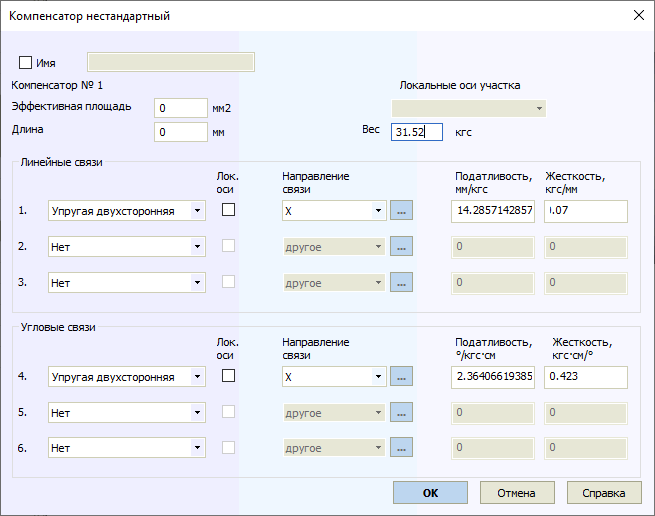
Fig. 1. Custom expansion joint restraint properties. Linear Y-axis and rotational X-axis restraints are free, replaced with elastic springs of specified flexibility.
Property |
Description |
Name |
Element name. Displays in 3D view when checked. |
Length |
Expansion joint length Lu. PASS/START-PROF models this expansion joint type with zero length internally, adding two rigid elements of length Lu/2 on each side. Model non-zero length expansion joints using Flexible Elements. |
Weight |
Expansion joint weight distributed equally to adjacent rigid elements (half to left, half to right). |
Thrust area |
Input thrust area to account for pressure thrust force. Required only for expansion joints with elastic axial restraints. Not used in analysis for other cases. |
Restraint type |
Two restraint types available: rigid and elastic. Direction automatically calculated for rigid restraints. |
Local axes |
When unchecked, coordinates are global (X,Y,Z). When checked, coordinates are local (Xm,Ym,Zm). All restraints must be mutually perpendicular.
Select "other" to specify custom restraint direction.
Restraint direction defined by three angles between restraint vector and global coordinate axes. Minutes expressed as tenths of degrees (up to two digits). Example: 30.25 indicates 30°15'. Positive angles require no "+" sign. More...
|
Restraint direction |
Direction restricting mutual displacement or rotation of pipe ends. |
Flexibility |
Flexibility of elastic restraint. |
For detailed restraint information, see "custom expansion joint restraints" and "custom restraints".
View expansion joint analysis results in the Expansion Joint Deformation Table.
To insert a custom expansion joint, select the desired node and use: Insert > Expansion Joint > Custom EJ
or click the  toolbar icon.
To view custom expansion joint properties:
 toolbar icon