Configure database access in the general settings.
Important: If database files such as Material.sqlite3, Grunt.sqlite3, Comp.sqlite3, Insulation.sqlite3, FittingBase.sqlite3, and similar are read-only, all database editing functions in PASS/START-PROF will be disabled.
PASS/START-PROF databases contain the following sections:
No |
Database |
Image |
File |
Description |
Editing Options |
|---|---|---|---|---|---|
1 |
|
Material.sqlite3 |
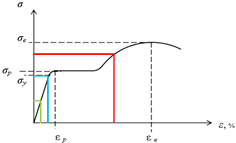
Physical properties of pipe and component materials |
Editable |
|
2 |
|
Prug.sqlite3 |
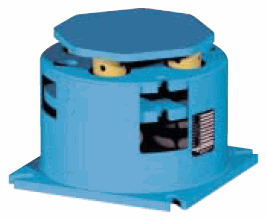
Properties and flexibility data for variable spring hangers and supports |
Read‑only |
|
3 |
|
ConstLoad.sqlite3 |
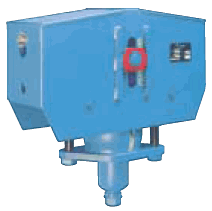
Properties of constant spring hangers and supports |
Read‑only |
|
4 |
|
Grunt.sqlite3 |
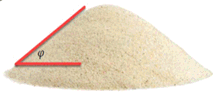
Physical and mechanical properties of soils |
Partially editable (codes 16+), partially read‑only (codes 0-15) |
|
5 |
|
Comp.sqlite3 |
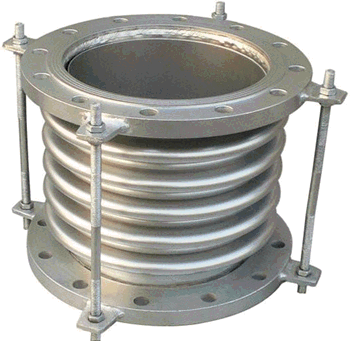
Expansion joint properties |
Read‑only |
|
6 |
|
Insulation.sqlite3 |
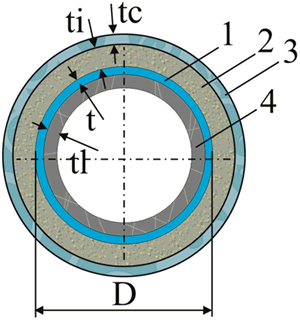
Insulation weight by construction type |
Editable |
|
7 |
|
PipeBase.sqlite3 |
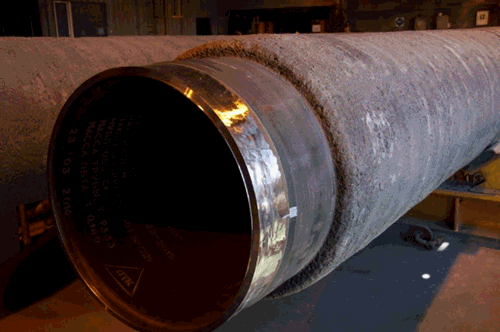
Pipe properties |
Editable |
|
8 |
|
FittingBase.sqlite3 |
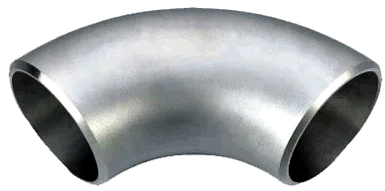
Bend properties |
Editable |
|
9 |
|
FittingBase.sqlite3 |
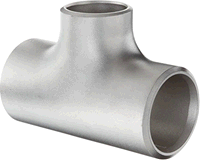
Tee properties |
Editable |
|
10 |
|
FittingBase.sqlite3 |
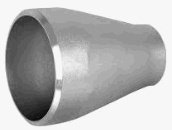
Reducer properties |
Editable |
|
11 |
|
FlangeBase.sqlite3 |
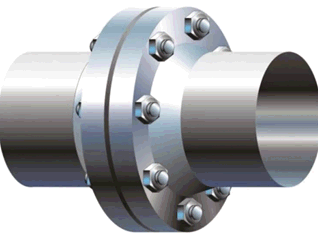
Flange pair properties |
Editable |
|
12 |
|
FlangeBase.sqlite3 |
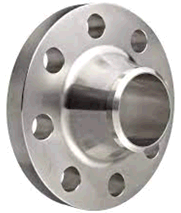
Single flange properties |
Editable |
|
13 |
|
FlangeBase.sqlite3 |
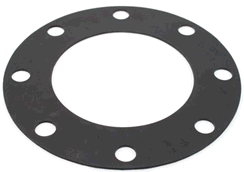
Gasket properties |
Editable |
|
14 |
|
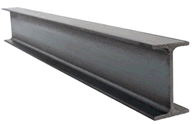
BeamBase.sqlite3 |
Beam cross-section properties |
Editable |
|
15 |
|
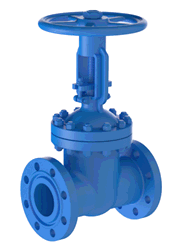
ValveBase.sqlite3 |
Valve properties |
Editable |
|
16 |
|
SupportBase.sqlite3 |
Support properties |
Editable |
You can also create custom databases for any project component.
To edit a database:
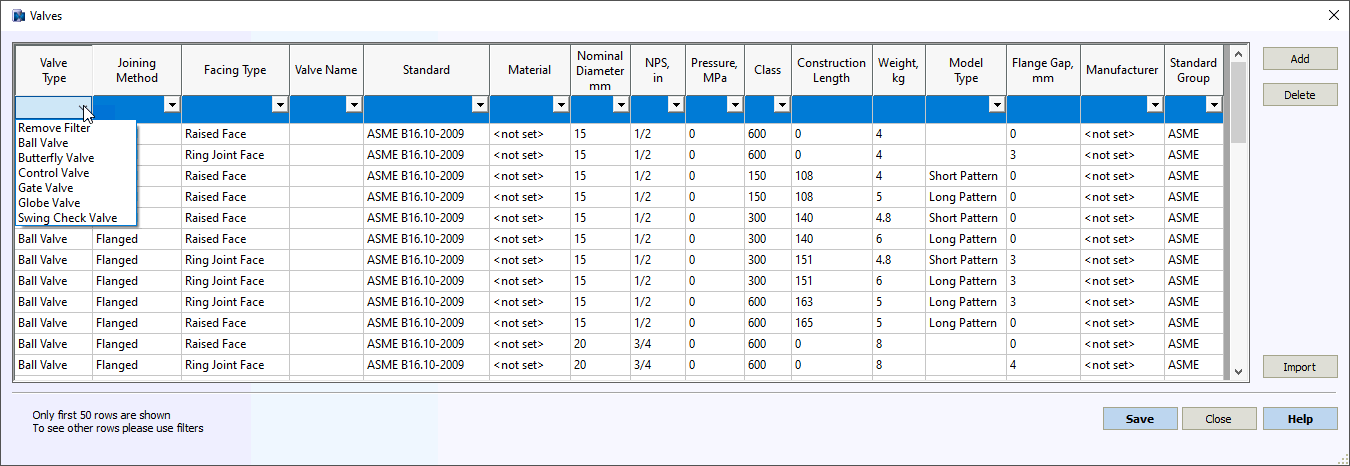
The database editor opens in a separate window.
To add a new item to the database:
To edit an existing item:
To delete an item from the database:
To save database changes, click Save.
To discard changes, click Cancel.