Import from AVEVA (PDMS, E3D, MARINE)
Hydrosystem provides the ability to import pipeline geometry from various AVEVA software (PDMS, E3D, MARINE) via the "open" Hydrosystem format (XML files). To use this function, it is necessary to connect a special additional module (.NET plug-in) to PDMS/E3D/MARINE, which allows you to export data from this program to XML files for Hydrosystem.
AVEVA PDMS 12.1, E3D 1.1, E3D 2.1, E3D3.1, Marine 12.1
After installing the Hydrosystem, the program installation directory (by default, “C:\Program Files (x86)\Truboprovod\hst_eng”) contains the “AVEVA” folder containing subfolders of plug-ins for different AVEVA software and its versions, which in turn contain the main library AVEVA-HST.dll of the corresponding plug-in, auxiliary libraries and the “Data” folder with the user settings file (options.json) and configuration file profiles
Plug-in connection to AVEVA PDMS/E3D/MARINE
1. If you use AVEVA PDMS/E3D/MARINE with network settings, you must copy the plug-in files of the corresponding version from the installation directory of Hydrosystem to a directory accessible to all users of AVEVA PDMS/E3D/MARINE.
To copy the plug-in files to a network folder and for the utilization of AVEVA products which use the .NET Framework until version 4.0, it is necessary to set the assembly AVEVA-HST.dll as fully trusted. This can be done by using the Code Access Security Policy tool (Caspol.exe), introducing the following command in the command line (cmd.exe):
*dotnet*\caspol.exe -m -ag 1.2 –url "file://\\path*" FullTrust
Where:
*dotnet* – path to the used .NET Framework,
path – network path to the copied plug-in libraries.
For example:
"C:\WINDOWS\Microsoft.NET\Framework\v2.0.50727\CasPol.exe" -m -ag 1.2 –url "file://\\Servername\addins\AVEVA-HST_1.3.4/*" FullTrust
2. Connect the plug-in of the corresponding version to AVEVA PDMS/E3D/MARINE by adding a command line of the following type to the active DesignAddins.xml (OutfittingAddins.xml for MARINE)
<string>*path*\ AVEVA-HST</string>
Where *path* – is the path to the AVEVA-HST.dll file from the plug-in set of libraries.
If everything is done correctly, when starting Design (PDMS/MARINE) or Model (E3D) the information about the plug-in loading will be displayed in the console.
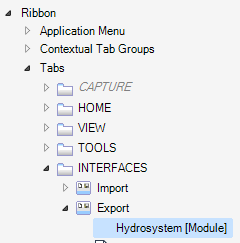
Also, the following elements will appear: a new toolbar for AVEVA PDMS/MARINE, or a tab on the ribbon with the “=>Hydrosystem” button for AVEVA E3D.
For an alternative way to add a panel, see below.
General export settings are configured by editing (in a text editor) JSON format configuration files in the program directory. User settings are available for editing through the plug-in interface in AVEVA PDMS/E3D/MARINE.
The configuration files are divided into two parts: the general, which describes the rules for exporting elements and parameters of the AVEVA PDMS/E3D/MARINE model to Hydrosystem (depending on the settings and work organization in 3D system), and the customized, where user-specific parameters are set.
General settings are always stored in the same library as the plug-in.
Shared configuration files are grouped into sets (“profiles”), which allows you to have several predefined configurations. Each set is stored in a separate folder.
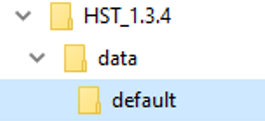
The default configuration files are located in the “…\data\default” folder relative to the plug-in file:
User settings are initially taken from the plug-in location directory. If the user changes the settings through the user interface and clicks “Save” button, the changed user settings will be saved in the directory specified in the evars.bat (evars.init) configuration file in the %PDMSUSER% environment variable for AVEVA PDMS/MARINE, or %AVEVA_DESIGN_USER% for AVEVA E3D and will be used by the plug-in in the user's workspace from these local directories.
To export data to Hydrosystem, you need to click on the “=>Hydrosystem” button. The module dialog box will pop-up :
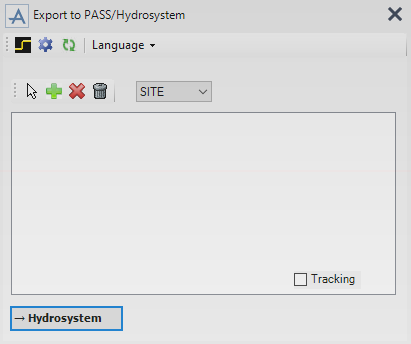
Description of the export module dialog box:
Symbol |
Description |
|
Show selected branches in 3D model. |
|
Open the settings dialog box. Change user settings, select a profile for general settings. |
|
Re-read configuration files. If the settings files were changed through a text editor while the module was running, they can be re-read. |
|
Add the element selected in Design explorer (and all the elements associated to it by the Tref and Href cross-references within the specified search field) to the export list. |
|
Add the selected BRANCH in Design explorer or all BRANCHes in the selected PIPE. |
|
Delete the selected BRANCH from the export list. |
|
Clear the list of exported elements. |
|
Export pipeline model into a Hydrosystem Open XML format file. |
|
Enable the tracking of selected BRANCHes in the Design Explorer tree. |
|
Switch between
the search areas ("ZONE", "SITE", "PIPE"
or "BRANCH") of the connected branches for the button
|
|
User interface language selection. |
To
add branches to the export list you need to select PIPE, BRANCH or BRANCH
element in the project tree and press the  button (if you need to add the current
BRANCH or all the branches of the current PIPE with all the elements connected
to them within the specified search area) or
button (if you need to add the current
BRANCH or all the branches of the current PIPE with all the elements connected
to them within the specified search area) or  button (if
you need to add a BRANCH that includes the current element, the current
BRANCH or all BRANCHes of the current PIPE).
button (if
you need to add a BRANCH that includes the current element, the current
BRANCH or all BRANCHes of the current PIPE).
To
start exporting selected branches, click the button  .
.
A dialog window for saving the XML file with pipeline model will appear. The import of this file will be performed by Hydrosystem:
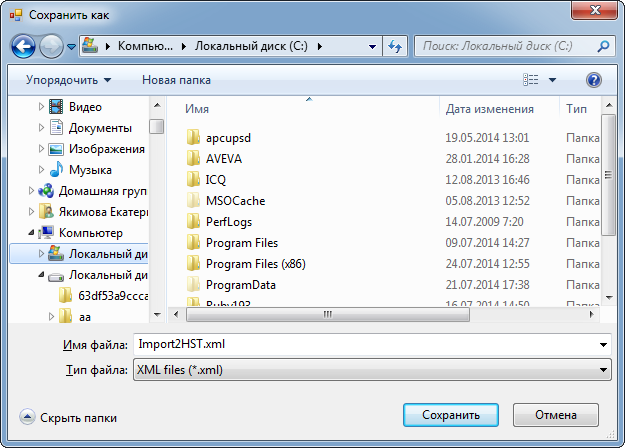
After specifying the path and file name, click the "Save" button.
When performing export operations, it is necessary to check the pipelines for logical integrity. BRANCHes must be connected (HREF, TREF, CREF attributes should be filled), the HSTU attribute for BRANCH and LSTU for pipeline elements must be correctly assigned.
When exporting, it is necessary to add all branches connected to the tees and tie-ins to the list of exported BRANCHes.
Next, in Hydrosystem, select the menu item "File -> Import ..." and specify the created file in * .xml format.
If the exported pipeline in Hydrosystem is not displayed correctly or has gaps, then you need to check the correctness of the model in AVEVA PDMS/E3D/MARINE.
Also, after importing, it is recommended to click the “Update” button on the View Options toolbar in Hydrosystem.
The  button
opens the export settings dialog window. Here you can set the following
parameters:
button
opens the export settings dialog window. Here you can set the following
parameters:
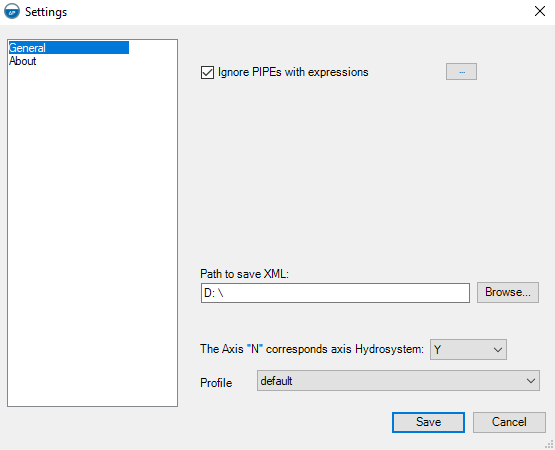
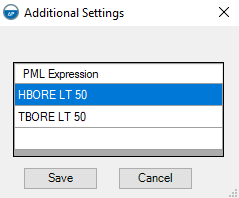
Ignore PIPES with expressions... - if this option is turned on, BRANCH elements that satisfy the conditions will not be exported to Hydrosystem. The conditions can be written in a dialog box (called by the click on the button next to the flag) in the form of PML expressions that return true/false.
Path to save XML - Default path for saving the Open XML format file of Hydrosystem.
The Axis "N" corresponds axis Hydrosystem - The N axis in AVEVA PDMS/E3D/MARINE will correspond to the specified axis in Hydrosystem .
Profile - Name of the used set of general settings.
All settings files are in JSON format and encoding "UTF-8 (without BOM)."
Value types: boolean (true/false), integer, double (a floating-point number), array, string.
PML expressions are executed relative to the current item in the BRANCH. If the element receives BRANCH attributes, it will become a BRANCH item.
For testing a pml expression it is necessary to execute it in the AVEVA console, enclosing it in parentheses and preceded by the “q” operator.
In PML Expressions it is allowed to use PML1 and functions in PML2. When using PML2 functions, you need to use the variable “!!CEHST” instead of the global variable “!!CE” .
Additional functions can be used in pml expressions in the configuration files. Functions do not allow nesting.
Description |
Syntax |
Example |
The function returns a position between two specified positions |
Position MID1(Position р1, Position р2) |
MID1(PPOS1;PPOS2) |
The function returns the distance between two given points |
number DIST1 (Position р1, Position р2) |
DIST1(PPOS1;PPOS2) |
The function returns the distance from a straight line, drawn across the first two points, to the third point |
number DIST1 (Position р1, Position р2, Position р3) |
DIST1 (PPOS1;PPOS2;PPOS3) |
The function returns the size of the PARA array |
number COUNTPARA1 |
COUNTPARA1 |
File:
options.json
Description:
In this file you can set user-defined export options from AVEVA PDMS/E3D/MARINE to Hydrosystem. These options are set in the dialog box described above.
Structure:
{
<parameter>: <value>,
...
}
Parameters:
Parameter name |
Value type |
Description |
ApplyFilter |
bool |
If true, the user filter conditions (the "Filter" parameter) will be applied when assembling the piping system model. |
Profile |
string |
Specifies the name of the settings profile. |
Axis |
number |
Which axis of Hydrosystem will correspond to the N axis from AVEVA (Y axis) 0 – «Y» 1 – «X» 2 – «-Y» 3 – «-X» |
Filter |
string array |
Specifies a list of PML expressions essential for the export of the BRANCH. Each expression should return a boolean value for the current BRANCH. If the expression returns false, the piping component is not exported. |
PathXML |
string |
The default path to save the import file. |
Setting of corresponding elements in AVEVA and Hydrosystem when exporting
Correspondence of AVEVA PDMS/E3D/MARINE elements with Hydrosystem elements, correspondence of elements attributes, as well as general project parameters are defined in the elements.json file.
The description of the Hydrosystem element types and their parameter is provided here.
Structure:
{
"multiplier": <value>,
"elements": {
"AVEVA_Element": {
"rules": {
<HST_Element>: {
"expression": <PML_stringExpression>,
"match": [<value> ...],
"parameters": {
Parameter: <PML_numericExpression>,
...
},
},
...
},
},
...
},
"branches": {
Parameter: <PML_numericExpression>,
...
}
}
Parameters:
Parameter name |
Value type |
Description |
Default value |
"multiplier" |
number |
The multiplier used in the coordinates transformation. |
0.001 |
"elements" |
object |
List of AVEVA element types and transformation rules. |
|
AVEVA_Element |
object |
The name defines the type of AVEVA element ("ELBO", "TEE", "OLET" etc.). The value defines the parameters corresponding to this type of element. |
|
"rules" |
object array |
List of export rules. Rules are checked from top to bottom until the first match. If no match is found, the item is exported as a node. |
|
HST_Element |
object |
The name defines the type of Hydrosystem element (element number in double quotes). The value defines matching rules corresponding to this type of element and expressions for setting element parameters. |
|
"expression" |
string |
Defines a PML expression whose value is compared with the values of the 'match' array. The value of the expression must be of type string. If a match is found for one of the values, AVEVA_Element is exported as HST_Element. A match is considered found if the parameter is absent or null. |
|
"match" |
string array |
Defines the values to compare with the values returned by the PML expression in “expression”. |
|
"parameters" |
object |
Parameter list. |
|
Parameter |
string |
The name defines the type of parameter of the Hydrosystem element (parameter name in double quotes from the diagram of the open format file OpenFormat.xsd, which can be found in the directory of the program installation). The value defines the PML expression for parameter calculation. The return value of the expression must be of type real. |
|
"branches" |
object |
Branches parameters list. |
|
"Tube" |
object |
Parameters for defining the diameters of the pipes that come out of the Branch (TEE, OLET) inDiam – internal diameter outDiam – external diameter. |
|
Example :
{
"multiplier": 0.001,
"elements":
{
"TEE":
{
"rules":
{
"28":
{
"parameters":
{
"name":"type + ' ' + name"
}
},
"29":
{
"parameters":
{
"name":"type + ' ' + name"
}
},
"6":
{
"parameters":
{
"name":"type + ' ' + name"
}
}
}
},
"tubi": {
"inDiam": "Lbore",
"outDiam": "Lodiam"
},
"branches":
{
"inDiam":"PHBO",
"outDiam":"PHOD",
"flow":"0",
"tFluid":"TEMP of PIPE",
"Density":"0",
"Viscosity":"0",
"GasContent":"0",
"Kavitation":"0"
} ,
"project":
{
"name1": "'Project'",
"document1": "'Document'",
"object1": "'Object'",
"installation": "",
"organization": "",
"stage": "",
"fio1": "'LastName1'",
"fio2": "",
"fio3": "",
"fio4": "",
"fio5": "",
"fio6": "",
"pos1": "",
"pos2": "",
"pos3": "",
"pos4": "",
"pos5": "",
"pos6": "",
"avertemp": "5.4",
"intemp": "20"
},
"pipeline":
{
"name": "'Pipeline'",
"QUnits": "'kg/hour'",
"weldLosses": "'true'",
"recalcRate": "'false'",
"roughness": "0.2",
"maxVelocity": "0",
"AbsHeight": "0"
},
"fluid":
{
"name": "text of text 1 of Fluref",
"state": "'Undefined'",
"method": "'WSP'"
}
}
File:
View.json
Description:
The file describes the attributes for setting the module interface.
Structure:
{
"CreateAddinPanel":<true/false>
"Language":<lan>
}
Parameters:
Parameter name |
Value type |
Description |
CreateAddinPanel |
bool |
true - in AVEVA interface a separate panel/ribbon will automatically be created for the PASS modules false - adding a module to AVEVA interface will be carried out manually by the user Registered
function to interract manually |
Language |
string |
Interface language. Supported languages: «ru», «en». |
Example :
{
"CreateAddinPanel":true,
"Language":"en"
}
Manually adding a module to AVEVA’s interface
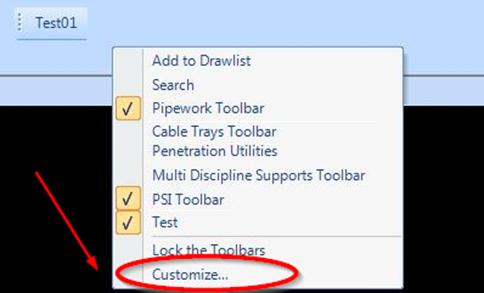
An example of manual interface customization in PDMS 12.1 is described, in other versions the process is similar. Enter the toolbar customization menu:
Сreate a button and bind to it the command to open the AVEVA-Hydrosystem module window:
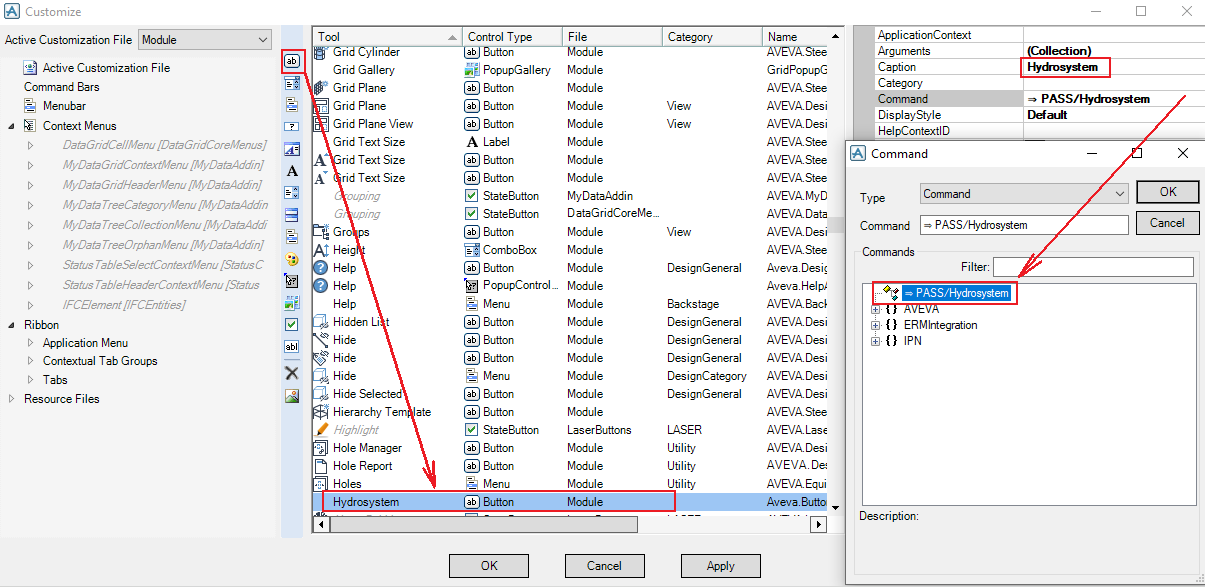
Drag the created button to the command bar: