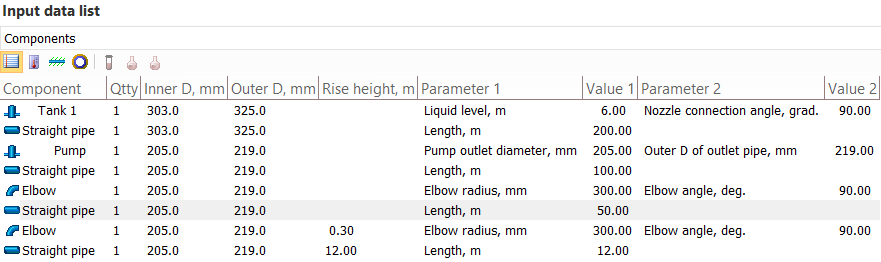
Input data list
This window displays the main input data for various pipeline elements in the form of a list.
The list of pipeline model elements displayed in this list depends on which element is currently selected:
to display information on a pipeline (or pipelines) within a project, select the root element (project) in the project tree;
to display information on pipeline branches, select pipeline1 in the project tree;
to display information on piping components (resistances) of any branch of the pipeline, select any component of this branch in the project tree or in the graphics window2;
to display information on fluid components (if any), select one of the components or the fluid in the project tree;
to display fluid information (this is only available if there are multiple products for a pipeline), select one of the fluids in the project tree for which no components are specified;
to display information on insulation layers (if any), select one of these layers in the project tree;
to display information on pipeline nodes, select any node on the diagram.
___________________________________________
1 - Please note that if a project was previously selected in the tree, then when you select a pipeline, the list of source data will still display pipelines, but with an emphasis on the selected pipeline. Therefore, to display data on branches in this case, it is better to select "Branches" in the drop-down list at the top of the window, or click on any other element of the project tree (product, branch, etc.), and then select the pipeline again.
2 - Please note that when selecting a pipeline branch in the project tree, the list window does not always display the elements of this branch. This depends on which element was previously active in the project tree - if a pipeline was previously selected, then after selecting a branch, its branches will still be displayed (with an emphasis on the selected branch), if a branch element or some other tree objects (product, insulation layer, etc.) was previously selected, then the list window will display the elements of this branch.
At the top of the input data list window there is a drop-down list that can be used to switch between the presentation of input data for pipelines, their branches, piping components, and pipeline nodes (if one of these elements is currently selected):
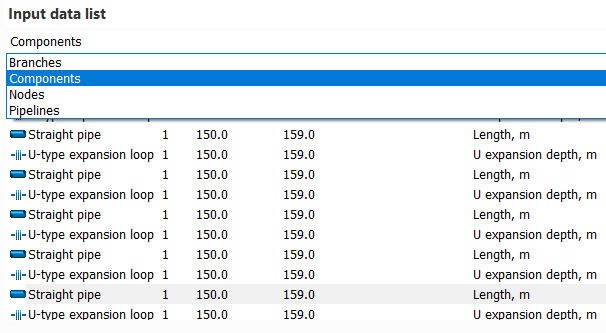
Please note that the display of piping components in this drop-down list will be available only if any branch or one of the components of the branch is currently selected (for a pipeline, the display of components data is not active, since the pipeline does not contain piping components, only branches). When the display of node data is enabled, depending on which element is currently active, either data for all pipeline nodes will be shown (if a pipeline is selected in the project tree or one of the nodes is selected in the pipeline diagram), or data only for the start and end node of the branch (if a branch is selected in the project tree). If either the project, or the insulation layer, or the fluid/fluid component is selected in the project tree, this switch is of no interest, since in this case only one item will be displayed in the drop-down list.
When displaying the input data on piping components, pipeline branches or the entire pipeline, the top part of this window will also have toggle buttons available that allow you to display various parameters of these elements:
 - display of general
information on elements (geometric characteristics of piping components;
flow rates, temperatures and other parameters of branches, etc.);
- display of general
information on elements (geometric characteristics of piping components;
flow rates, temperatures and other parameters of branches, etc.);
 - display of parameters
of the location of elements (outdoors, indoors, etc.) and the main characteristics
of the location (air temperature, wind speed, etc.);
- display of parameters
of the location of elements (outdoors, indoors, etc.) and the main characteristics
of the location (air temperature, wind speed, etc.);
 - display
of soil parameters (if any);
- display
of soil parameters (if any);
 - display
of parameters of the thermal insulation (if any);
- display
of parameters of the thermal insulation (if any);
 - display of the component molar or mass (depending on
which units of composition are selected for the fluid) composition of
the fluid in % (only for branches and only if, in addition to the main
fluid, the fluids for branches are also specified);
- display of the component molar or mass (depending on
which units of composition are selected for the fluid) composition of
the fluid in % (only for branches and only if, in addition to the main
fluid, the fluids for branches are also specified);
 –
gas phase composition of a two-phase fluid (only for branches, only if
two fluids are specified for the pipeline, and only if fluids are also
specified for branches in addition to the main fluids) - activated after
pressing the button
for displaying the fluid composition;
–
gas phase composition of a two-phase fluid (only for branches, only if
two fluids are specified for the pipeline, and only if fluids are also
specified for branches in addition to the main fluids) - activated after
pressing the button
for displaying the fluid composition;
 –
liquid phase composition of a two-phase fluid (only for branches, only
if two fluids are specified for the pipeline, and only if fluids are also
specified for branches in addition to the main fluids) - activated after
pressing the button
for displaying the fluid composition.
–
liquid phase composition of a two-phase fluid (only for branches, only
if two fluids are specified for the pipeline, and only if fluids are also
specified for branches in addition to the main fluids) - activated after
pressing the button
for displaying the fluid composition.
The input data list window is synchronized with the Project Tree window, the Object Properties window, and other program windows - when you select an element in any of the windows, the focus moves to it in other program windows.