Export input data and calculation results to Microsoft Word using custom templates.
To export data:
Note: When exporting to cloud services (Dropbox, etc.), save reports to local drive first to avoid empty files.
Templates are standard .docx files edited in MS Word. Use special markup language to control output formatting.
PASS/START-PROF includes basic templates for common design codes and languages. Users can modify existing templates or create custom sets.
Set template folder path in General Settings > Paths to Files > Templates. Create multiple template folders and switch between them as needed. Root templates (names starting with "A4") correspond to specific design codes.
Set output documentation language: Service > Settings > Language > Language of output documents
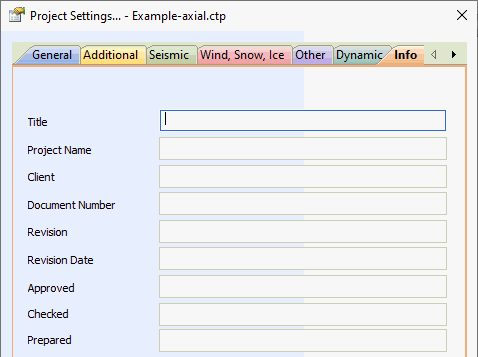
Add user information for reports: File > Project Settings > Info
| Field | Variable |
| Title | user.Title |
| Project Name | user.Project_name |
| Client | user.Client |
| Document Number | user.document_No |
| Revision | user.Revision |
| Revision Date | user.revision_date |
| Approved | user.approved |
| Checker | user.checked |
| Prepared | user.prepared |
Default template location: ..\CTAPTPR\Templates\
Each design code has a root template that may include embedded templates. Together they form a template set.
Create language-specific template sets in these subdirectories:
| Language | Folder Name |
| English | en |
| Spanish | esp |
| Chinese | ch |
| Russian | ru |
When language-specific folders exist, root directory templates are ignored for that language.
PASS/START-PROF generates text data tables during export, saved as .tbl files in ..\AppData\Local\Temp
Data tables contain sections bracketed by section names: [section_name]
Two section types:
Each table has two sections: meta (map type) and data (table type). Meta section describes field parameters.
Meta format:
<id>[=<val>[,<name>[,<type>[,<units>[,<factor>]]]]]
Example: foo=,42,,0.5 defines:
| id | name | type | units | factor |
| foo | foo | 42 | 0.5 |
Data section contains values corresponding to meta field order.
Example data table:
[meta]
node_start
node_end
x=,,,mm
y=,,,mm
z=,,,mm
material=,,1
[data]
1,2,1000,0,0,A106 B
2,3,0,1000,0,A106 B
3,4,0,1000,0,A106 B
This produces:
| node_start | node_end | x | y | z | Material |
| 1 | 2 | 1000 | 0 | 0 | A106 B |
| 2 | 3 | 0 | 1000 | 0 | A106 B |
| 3 | 4 | 0 | 1000 | 0 | A106 B |
Fields x, y, z include "mm" unit specification.
All template expressions use {#...#} delimiters.
Directive format:
{# <tag>[: attributes] #} (variables)
{# <tag>: attributes #} … {# end<tag> #} (sections)
Attributes are comma-separated name or key=value pairs.
Example: {# name: F=c, L=en #}
Template processing uses a current table with its own structure and current row.
Iterate through table rows:
{# for: <table>[,<condition> ] #}…{# endfor #}
Optional condition filters records (see "Conditional Directives").
Nested for blocks are supported.
Iterate through table fields:
{# for: [<table>.]fields [,<condition> ] #} {# endfor #}
Field iteration provides access to variable parameters: id, name, val, etc.
The tables.tbl file contains generated tables list for user-defined display order.
[meta]
DescrData=,1
Materials=,1
Translation tables (translation.tbl) provide multilingual support for variable IDs and text strings.
[meta]
id
en
esp
[data]
DescrData, general data, general data
pipe, tuberia
node, nodo
User data stored in user.tbl file.
Variable directives extract data from table fields.
Variable parameters:
Variable format: {# [<table>.]<id>[:<attr1>=<value>,<attr2>=<value2>…] #}
Attributes:
Output types:
Examples:
Conditional directives control template fragment inclusion.
{# if: <condition> #}
[ {# else #} ]
{# endif #}
Supported operators: <, >, ==, !=, <=, >=
Check variable existence: {# if: <name>.exist #}
Short form: {# if: <name> #} equals {# if: <name> != "" #}
Translate arbitrary strings: {# tr:<text>, L=<lang> #}
Example: {# tr:"red", L=ru #} = красный
Include JPEG, BMP, PNG images from data table directory.
{# img: <filename>, w=<width>, h=<height> #}
Width/height in centimeters. Omit both for 100% size.
Include other templates: {# include: <filename>[, curTable=<table>] #}
Only main document content included. Styles and page settings from root template used.
Examples:
{# include: "Materials.docx" #}
{# for: tables #}
{# name: L=ru, F=c #} ({# name: L=en, F=c #})
{# include: id #}
{# endfor #}
Run report generator separately:
..\CTAPTPR\StartReport\NTP.StartReport.Console.exe <main_template> <output> <template_directory> <data>
Parameters:
File > Export > Report into MS Word, Excel