License and dongles
Hydrosystem is protected against pirating. Some of the modules executed while the program is running check for the presence of the USB dongle and if it’s absent, the program exits. If the dongle is removed while running Hydrosystem, the program will stop working and you will receive an error message.
Hydrosystem supports local and network security dongles, as well as internet licenses.
Local licenses are based on a local USB dongle. This USB dongle can be moved between computers (desktops or laptops); the program will run on the computer on which the dongle is currently installed. For local dongles, driver installation is not required, the dongle is immediately ready for operation (this is the so-called driver-less configuration, the dongles operate in USB HID mode). When connecting a local USB dongle, make sure that the light built into the dongle is lit continuously. The absence of a light bulb or a flashing light indicates either insufficient power of this USB port (in this case, the dongle must be placed in another port), or a malfunction of the port or dongle.
Please note that if one computer makes a remote connection to another computer with the Hydrosystem via Remote Desktop Protocol (RDP), then the local dongle will not work regardless of which of the two computers it is connected to. Therefore, for the Hydrosystem to work properly with a local dongle, you must either run the Hydrosystem on the computer on which this dongle is physically installed, or use another remote connection technology (for example, using TeamViewer, AnyDesk or similar software) - in this case the local dongle must be installed on to the computer to which you are connecting.
When working in a virtualization environment, the local dongle should be forwarded to the virtual machine on which the work is being done. However, it is important to note that not all virtualization environments support this feature. For example, VMWare supports connecting USB devices, but Microsoft HYPER-V technology does not. Otherwise, the rules for working with virtual machines are the same as with hardware computers: when connecting via RDP, the local dongle will not work, you need to use alternative methods.
Network licenses are based on a special USB network protection dongle. The USB dongle is installed on a computer (server), which can be accessed over the network from other computers on which the Hydrosystem is installed. For the network dongle there are no restrictions on the use of RDP, HYPER-V, etc., since the connection occurs over the network and is not connected to the computer on which the program is running.
For correct operation of the Hydrosystem with the Sentinel HL network dongle (the type of dongle can be checked with the organization from which the license for Hydrosystem was purchased), you must:
• allow access via TCP and UDP protocols, port 1947 to the server where the dongle is located;
• on the server computer where the network dongle is installed, install dongle drivers and the license manager service suitable for the server operating system (Windows 7, Windows 8/10/11+, Linux Ubuntu, Linux RedHat, Linux common). The license manager and drivers distribution can be downloaded from PASS website;
• on the computer where the Hydrosystem is installed, install the dongle driver, which can also be downloaded from PASS website.
After installing and starting the service, you can monitor the dongles in a web browser at: http://<key server>:1947
Please note that by default, dongle monitoring is only available locally on the computer where the dongle is installed (at http://localhost:1947/). To access from other computers, you must enable the "Allow Remote Access to ACC" option in the monitor settings in the "Configuration" section
For correct operation of the Hydrosystem with the Guardant network dongle * (the type of dongle can be checked with the organization from which the license for Hydrosystem was purchased), you must:
• allow access via TCP and UDP protocols, ports 3185, 3186, 3187 to the server where the dongle is located;
• on the server computer where the network dongle is installed, install dongle drivers and the license manager service. The license manager and drivers distribution can be downloaded from the manufacturer's website;
• on the computer where the Hydrosystem is installed, install the dongle driver, which can also be downloaded from the manufacturer's website.
Windows
10/11 users:
before starting Guardant driver installation, make sure that the Kernel-mode
Hardware-enforced Stack Protection feature
has not been activated.
Hardware-enforced stack protection works with Intel processors with Control-Flow
Enforcement Technology (CET) and AMD processors with Shadow Stack. However,
this technology is only available to users of the Pro and Enterprise editions
of Windows.
Windows 7/Server 2008R2 users: KB4474419 update is required to install the driver.
After installing and starting the service, you can monitor the dongles in a web browser at: http://<key server>:3185
Network dongles are only available if you purchase two or more Hydrosystem licenses. The total number of copies of the running program is controlled by the dongle and corresponds to the number of purchased licenses. If all licenses in the dongle are currently occupied, then when you launch the next copy of the program, a corresponding message will be displayed and the operation of this copy will be impossible. The launch and operation of a new copy of the program will be possible only after one of the currently running copies of the program is closed and the occupied license is released. The configuration of all network licenses (program version, additional options) on one dongle must be the same. Network licenses per one seat are not supplied.
To work with an Internet license, a hardware dongle is not required, but a permanent connection to the Internet is required. To work with an Internet license, the HTTPS protocol is used, so if the user has access to the Internet through a browser, then no special firewall settings are required (you can check the availability of the license server using this link - if the page opens, then the server is available). If the system is configured for access via a Proxy server, its settings will be applied automatically.
To obtain an Internet license, the user must register a PASS ID at:
https://passid.passuite.com/passid-personal/signup
PASS ID is user identification data (email, password) used to work with an Internet license. The user's email can be any valid address, including a corporate address. The user generates the password independently (if necessary, it can then be changed/restored in the personal account). When working with an Internet license, the program remembers the PASS ID for further launches of the program.
PASS ID registration is a one-time process. Multiple licenses can be associated with one PASS ID. After registration, the user must send to the organization through which the license for Hydrosystem was purchased the e-mail used when registering the PASS ID to link the license to it. In response, the manager will send a license file that will need to be loaded into the program (see below for more details).
Attention! Do not tell anyone your PASS ID password, not even PASS team! Sales and technical support do not require your password to manage your license.
Please note that if the Internet connection is lost, the program configured with an Internet license will pause with an appropriate error message. In this case, the user is given the opportunity to switch to another license (if he has one) by loading the corresponding license file (see below for more information on this). If the Internet connection is restored after this, you can simply select the same license file and the program will resume operation. If you select the same license file with an Internet license while the Internet connection has not been restored, the program will exit, having first saved the current project to the temporary files directory, and a corresponding message will be displayed.
When purchasing local or network licenses for Hydrosystem, the user is supplied with protection dongles according to the number of copies supplied. If the license for the program was purchased through a dealer, then the dongles are supplied unactivated, and the program will not work with them. For the program to work, you need to update the information in the dongle. Also, a dongle update may be required in other cases:
• After receiving the new version of the Hydrosystem
• After renewal of the contract to change the end date of service
• When purchasing additional modules that expand the capabilities of the program
• If some problems and errors occur in the operation of the dongle
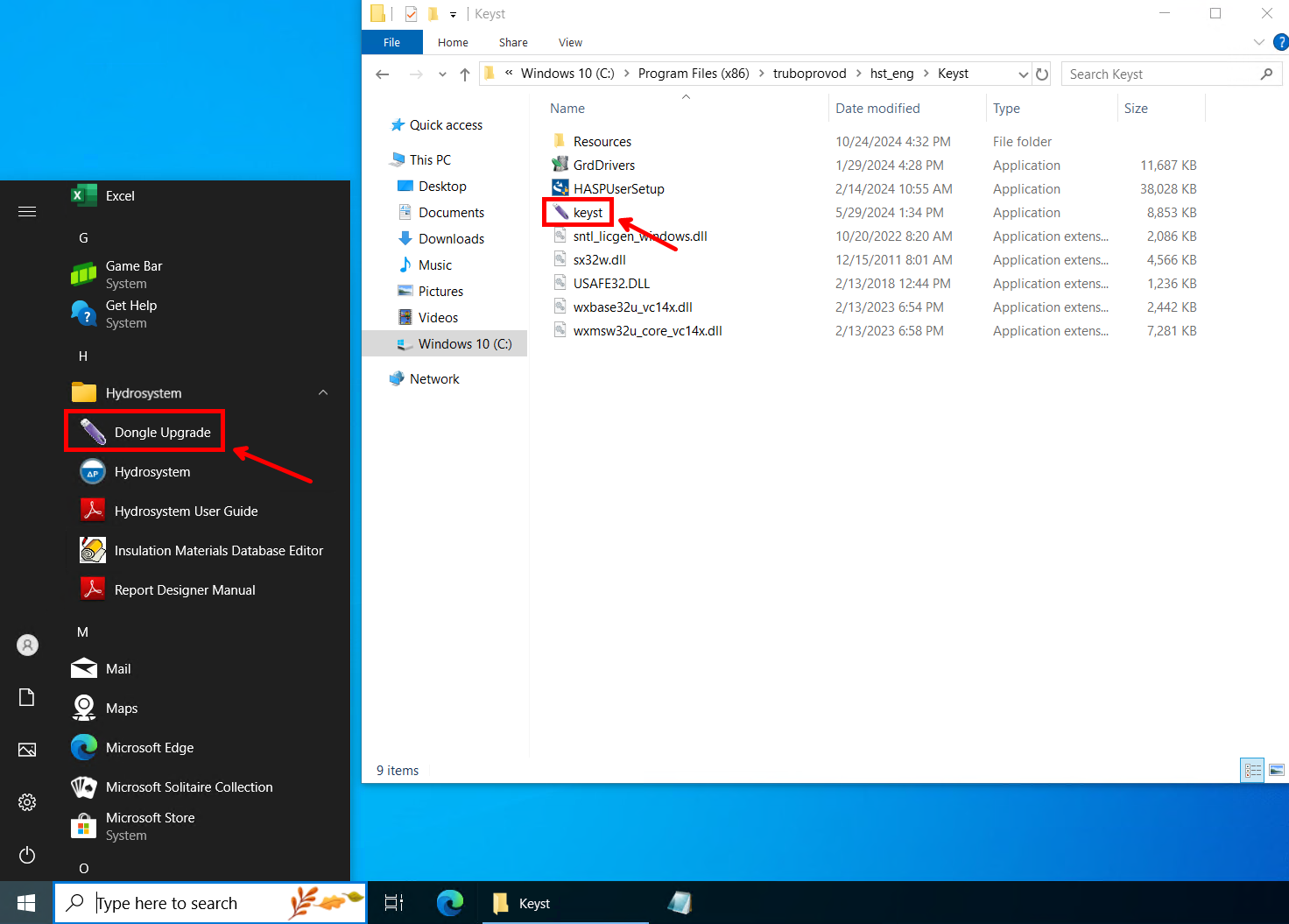
To update the information in the dongle (local or network), you need to insert it into the USB port of the computer (in this case, please make sure that in addition to this key, no other keys for PASS Software are installed on the PC) and run the additional dongle update utility using the "Dongle Upgrade" shortcut in the Hydrosystem Start menu folder or by directly running the ‘keyst.exe’ file from the Keyst folder in the program installation directory. In the window that appears (depending on the version, its appearance may differ slightly from that shown in the screenshot below), you need to use the corresponding button to save the dongle state string to a file:
In the window that appears (its appearance may differ slightly from that shown in the screenshot below, depending on the version), you must use the appropriate button to save the key status line to a file:
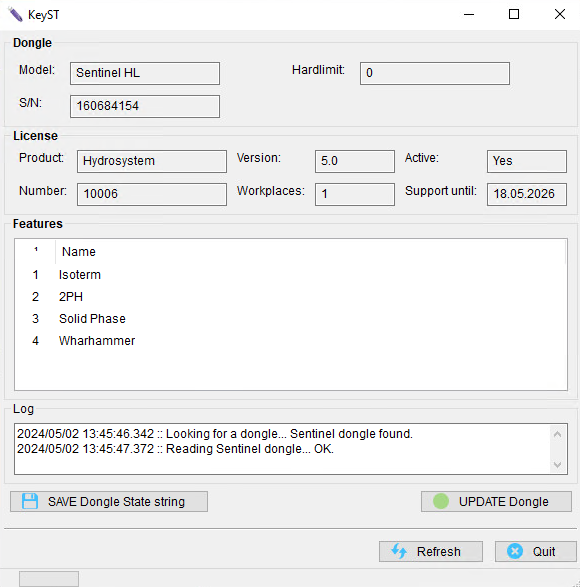
The resulting string will then need to be sent to the organization through which the license for Hydrosystem was purchased. In response, you will be sent a file with a dongle update string, which you will need to download using the “UPDATE Dongle” button.
After this, the relevant information about the license will be written into the dongle (about which a corresponding message will be displayed), and you can start working in Hydrosystem with this dongle. The information is stored in the dongle's memory, so the updated dongle can then be used on any other machine without having to update again.
Please note that:
• the dongle update program must be launched on the computer where the dongle is directly installed (without using remote access);
• each time the dongle update program is launched, the dongle state string is different and cannot be reused;
• after removing the state string, all previous strings of this dongle become invalid, and the update strings generated in response to them will also not work. Therefore, if you accidentally saved the state string of the same dongle twice (or more), to update the dongle, send the file with the latest saved string to the organization through which Hydrosystem license was purchased (and do not save any more strings until the dongle is successfully updated). If the dongle state string was saved after a successful dongle update, this will not harm the dongle’s functionality.
When using Hydrosystem automatic update, the local dongle can also be updated automatically (when new versions of the program are released, technical support is extended), which makes the manual dongle update described above and sending state and update strings unnecessary. However, unfortunately, it will not be possible to update network dongle automatically. To update the network dongle using automatic updates, you need to:
• extract it from the server and install it on a local PC with Hydrosystem installed,
• edit the license file, setting the value local for the remote parameter:
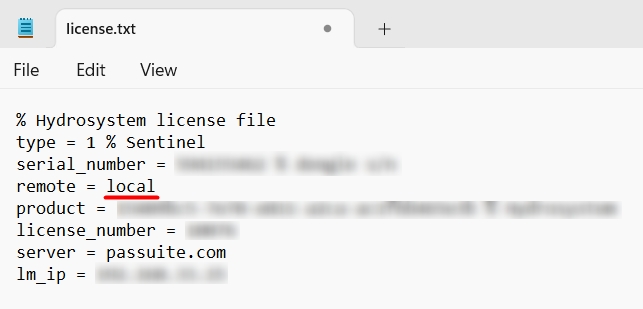
launch Hydrosystem and perform the automatic update procedure - the information in the dongle will be updated, and a corresponding message will be displayed during the update process;
extract the dongle and return it to the server;
return the original value of the ‘remote’ parameter in the license file (remote = remote).
The network dongle can also be updated manually according to the instructions described above using the dongle update program.
When you launch Hydrosystem for the first time, the following window will appear in which you will need to select a file with a license:
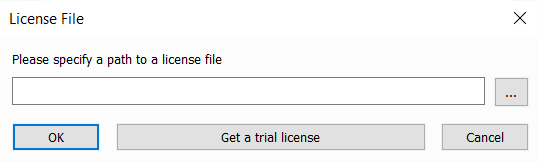
This file is a regular text file with a .txt extension and contains license parameters (type, key serial number, etc.). It is transferred to the user when activating a hardware dongle for the program or when creating an Internet license. If you use a local license for the program based on a hardware USB dongle, you just need to load the license file transferred to you and after that the program will be immediately ready to work. If you use an Internet license, you also just need to load the license file, after which you will need to enter the password for your PASS ID in the corresponding window:
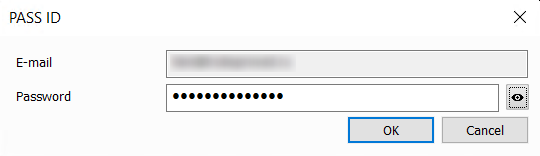
If the system is configured to access the Internet via a Proxy server that requires authentication, then in the corresponding window you will also need to specify the login and password for accessing the proxy server (only when you first start the program).
If you are using a network license based on a USB dongle installed on another computer (server), then before loading the license file you need to make the following changes to it:
set the remote parameter to remote;
set the lm_ip parameter value to the IP address of the server computer on which the dongle is installed:
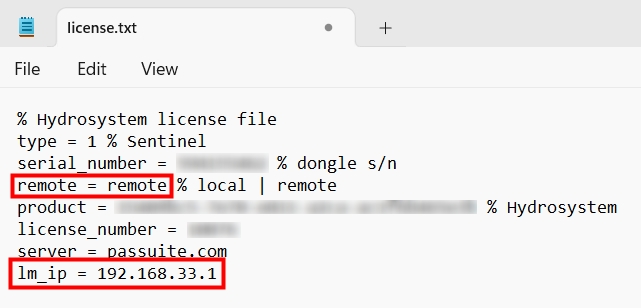
Any characters after the % sign in this file are ignored.
Also, instead of the lm_ip parameter, you can use the lm_host parameter (in the value of which you need to enter the network name (dns) of the server with the dongle) or lm_id (LM server identifier - only for Sentinel HL keys) - it is enough to specify only one of these three parameters. After making changes to the license file, save it and load it into the program.
After successfully loading the license file, a corresponding message will be displayed, which will also prompt you to copy this file to the Hydrosystem settings folder:
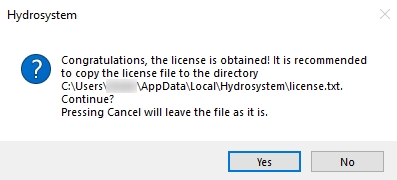
It is recommended to click “Yes” in this window so as not to lose this file in the future.
After this, information about the license will be displayed in the lower right corner of the program window and the program will be ready for use. You can also view information about the license at any time in the “Help - About Hydrosystem...” menu.
The dialog for specifying a file with a license can then be called up, if necessary, in the menu "Tools - License file...". This may be necessary, for example, if you have several different licenses and need to switch from one to another - in this case, simply specify a different license file.
The path to the location of the license file is stored in the Windows registry in the ‘HKEY_CURRENT_USER\Software\Pipelines System\Hydrosystem\License’ key in the ‘Path’ parameter. Therefore, if any problems arise with the license file (for example, if the file was located on external storage, which was then removed), it is enough to delete the ‘Path’ parameter and restart the program - you will again be prompted to specify the license file.
________________________________________________
* - To search for the Guardant network dongle parameters, an additional settings file gnclient.ini is used. This file is created automatically based on the parameters from the license file license.txt and is located in the folder:
%LOCALAPPDATA%\PASSUITE\<program id>\
The license file format supports the grdinipath parameter to specify the full path to the Guardant network key settings file, which can be written to license.txt. If the grdinipath parameter is set, the file is created and searched for not in %LOCALAPPDATA%\PASSUITE\<program id>\gnclient.ini, but in the path specified in grdinipath.
The program_name parameter is also supported, which can be used instead of the program guid. If it is set, the file is created and searched for at:
%LOCALAPPDATA%\PASSUITE\<program_name>\gnclient.ini.
ATTENTION: gnclient.ini is created once. If the file already exists, its parameters are not overwritten. Therefore, further settings must be made either directly in gnclient.ini, or changes must be made to license.txt, but to apply them, gnclient.ini must be deleted. This file can also be obtained from the LM monitoring page (Menu “client ini-file settings”) .